Quick Answer (TL;DR)
This free Google Sheets epic roadmap template lets you organize product development work into epics displayed across a timeline. Directly inside a spreadsheet you can share with your entire team. No new tools to learn, no software to install. Make a copy, fill in your epics, and you have a collaborative roadmap in under 15 minutes.
What This Template Includes
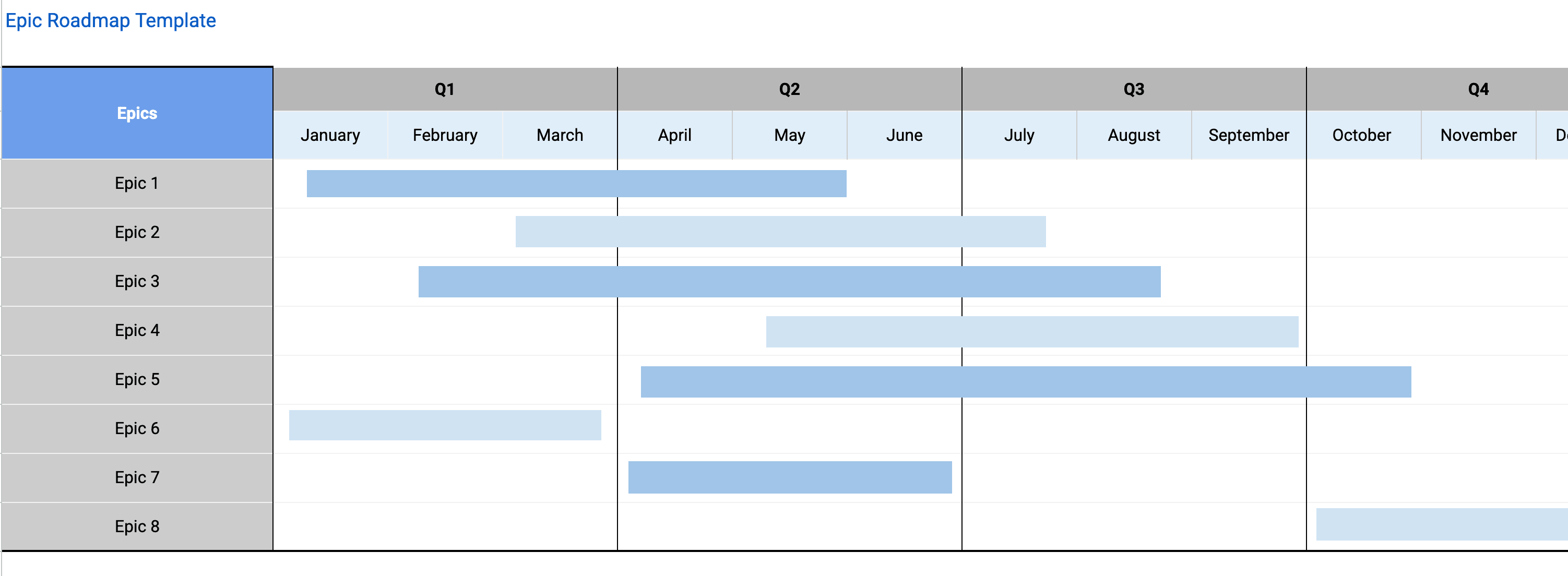
- Epic timeline rows. A horizontal timeline that maps each epic to target start and end dates across weeks, months, or quarters, with visual bars spanning the timeline columns so you can see duration at a glance.
- Dependency tracking. A dedicated column to flag which epics block or depend on others, preventing scheduling conflicts before they happen. In Google Sheets, conditional formatting highlights dependency chains so conflicts stay visible.
- Progress tracking columns. Status indicators (Not Started, In Progress, In Review, Done) with conditional formatting that color-codes each epic automatically, plus a percentage-complete column that updates as you track story completion within each epic.
- Owner and team assignments. Columns for product manager, engineering lead, and squad so accountability is never ambiguous. No switching to another tool needed.
- Priority and effort scoring. Built-in fields for priority level (High, Medium, Low) or RICE/MoSCoW scoring so your roadmap reflects strategic intent, not just a backlog dump.
- Milestone markers. Key dates such as launches, demos, or regulatory deadlines overlaid on the timeline to keep the team anchored to real-world constraints.
Why Use Google Sheets for Your Epic Roadmap
Google Sheets is the most accessible roadmapping tool available. Everyone on your team already has access, there is no per-seat pricing, and the collaboration features are built in. Real-time editing means your product manager, engineering lead, and stakeholders can all view and update the roadmap simultaneously without version conflicts.
For epic roadmaps specifically, Sheets works well because the tabular format naturally maps to epic metadata. Names, dates, owners, and status fields. Conditional formatting turns raw data into visual indicators, following Google Sheets best practices, and the familiar spreadsheet interface means zero onboarding time for new team members.
Google Sheets also integrates natively with Google Slides, Google Docs, and Google Calendar. You can link your roadmap data into a presentation deck for stakeholder reviews or set up calendar events tied to milestone dates. And because it lives in Google Drive, sharing permissions are granular. Give view-only access to executives and edit access to the core team.
Template Structure
Epic Inventory
The first tab is a flat list of every epic under consideration. Each row captures the epic name, a one-sentence description, the owning team, estimated effort (in story points or t-shirt sizes), and current priority. Think of this as your backlog of epics before they get placed on the timeline. In Google Sheets, you can sort and filter this tab by any column. Priority, team, or status. To quickly slice the data for different audiences. Keeping a clean inventory prevents duplicate work and gives leadership a single place to propose new initiatives.
Timeline Board
The core of the template. Epics are placed as horizontal bars on a calendar grid built from spreadsheet columns. The length of each bar represents the estimated duration, generated automatically via conditional formatting based on your start and end dates. Color-coding by team or product area makes it easy to spot overloaded quarters. Adjust dates in the inventory and the timeline bars update automatically. This is the view you will share most often in stakeholder meetings and sprint planning sessions.
Dependency Tracking
A dedicated section that maps epic-to-epic dependencies. When Epic A must finish before Epic B can start, the dependency column makes that constraint explicit. In Google Sheets, you can use data validation dropdowns to reference other epic names, keeping dependency entries consistent and typo-free. This is especially valuable for platform teams whose infrastructure work gates multiple feature epics across different squads.
Progress Dashboard
A summary panel that aggregates completion percentages, stories completed versus remaining, and velocity trends per epic. Google Sheets formulas calculate these automatically from the status data in the inventory tab. Product managers use this section in weekly stand-ups and monthly business reviews to answer the question "are we on track?" without opening three different tools.
Risk and Blocker Log
A lightweight table where anyone on the team can flag risks (potential problems) and blockers (current problems) tied to specific epics. Each entry includes severity, owner, and a target resolution date. In Google Sheets, you can set up conditional formatting to highlight overdue items in red. Surfacing risks early is the single highest-value habit a product team can build, and this section makes it frictionless.
How to Use This Template
1. Make a copy of the template
What to do: Open the template link and click File → Make a copy. This creates your own editable version in Google Drive. Rename it to match your team or product name so it is easy to find later.
Why it matters: Working from your own copy ensures you can customize freely without affecting the original template, and it immediately lives in your team's shared Drive where permissions are easy to manage.
2. Add your epics to the inventory
What to do: Replace the example epics with your actual product work. For each epic, fill in the name, a one-sentence description, the owning team, and priority level. If you are migrating from Jira or Linear, export your epics as CSV and paste them directly into the sheet.
Why it matters: You cannot prioritize what you cannot see. Consolidating epics into one place forces the team to confront the full scope of planned work, which almost always reveals duplicates, orphaned epics, and outdated initiatives that should be retired.
3. Score and prioritize
What to do: Apply a consistent prioritization framework to every epic. The template supports RICE (Reach, Impact, Confidence, Effort) and simple High/Medium/Low prioritization. Fill in the scoring columns and sort by priority. You can use the RICE Score Calculator to compute scores before entering them.
Why it matters: Without explicit prioritization, roadmaps become political documents where the loudest voice wins. A scoring framework depersonalizes the decision and gives you data to defend trade-offs when stakeholders push back.
4. Set dates and map to the timeline
What to do: For each epic, enter the planned start and end dates. The template uses these dates to generate the visual timeline bars automatically via conditional formatting. Adjust the timeline columns (weeks or months) to match your planning horizon. Starting with your highest-priority epics, set realistic dates based on team capacity and historical velocity. Leave buffer for unplanned work. A good rule of thumb is 20% of capacity.
Why it matters: A roadmap without dates is just a list. Placing epics on a timeline forces you to confront resource constraints and answer the critical question: "Can we actually do all of this in the time we have?"
5. Define dependencies and owners
What to do: In the dependency column, note any epics that must complete before others can begin. For each epic, ask "does this require any other epic to be finished first?" Look for circular dependencies, which indicate a scoping problem. Assign an owner to every epic. Roadmaps without clear ownership become wish lists that nobody executes against.
Why it matters: Missed dependencies are the number one cause of roadmap slip. Making them visible early lets you resequence work or break epics into smaller, independent chunks that can proceed in parallel.
6. Share and iterate
What to do: Share the sheet with your team using Google Drive permissions. Set up a recurring calendar event (biweekly works for most teams) to review and update the roadmap together. Update status columns as work progresses to keep the roadmap a living document.
Why it matters: A roadmap is a living document. If it only gets updated at quarterly planning, it becomes stale within weeks and people stop trusting it. Regular iteration keeps the roadmap credible and useful as a communication tool.
When to Use This Template
Epic roadmaps are the right tool when your team is managing multiple large initiatives that span several sprints or months. If your work fits neatly into a single two-week sprint, a simpler sprint board is a better fit. But as soon as you have three or more concurrent epics with overlapping timelines and shared resources, an epic roadmap prevents chaos.
This Google Sheets version works especially well for startups and mid-size product teams (2-30 engineers) that want a collaborative roadmapping solution without the cost or complexity of dedicated roadmapping software. Everyone on the team already has access to Google Workspace, so there are no new tool licenses or onboarding costs. It bridges the gap between high-level strategic roadmaps that executives want and the detailed sprint backlogs that engineers work from day to day.
It is also a great fit for cross-functional projects where marketing, design, and engineering all need visibility into the plan. Google Drive's granular sharing permissions let you give view-only access to executives and edit access to the core team without managing separate accounts.
Use this template during quarterly planning, portfolio reviews, and headcount conversations. When leadership asks "what would we cut if we lost one engineer?" or "what could we accelerate with two more?", the epic roadmap in Sheets gives you a concrete, visual answer that anyone can access from a browser.
Featured in
This template is featured in Agile and Sprint Roadmap Templates, a curated collection of roadmap templates for this use case.
Key Takeaways
- Google Sheets provides a free, collaborative platform for epic roadmaps that everyone on the team can access without new tool licenses.
- Explicit dependency mapping is the single most effective way to prevent roadmap slippage and scheduling surprises. The dependency column keeps these visible in every view.
- Prioritization frameworks like RICE remove politics from sequencing decisions and give product managers defensible rationale for trade-offs.
- Conditional formatting and formulas turn raw roadmap data into visual timeline indicators automatically, reducing manual upkeep.
- Regular review cadence (biweekly minimum) keeps the roadmap accurate and credible as a planning and communication tool.
- Reserving 15-20% capacity buffer for unplanned work keeps the roadmap realistic and builds organizational trust.