Quick Answer (TL;DR)
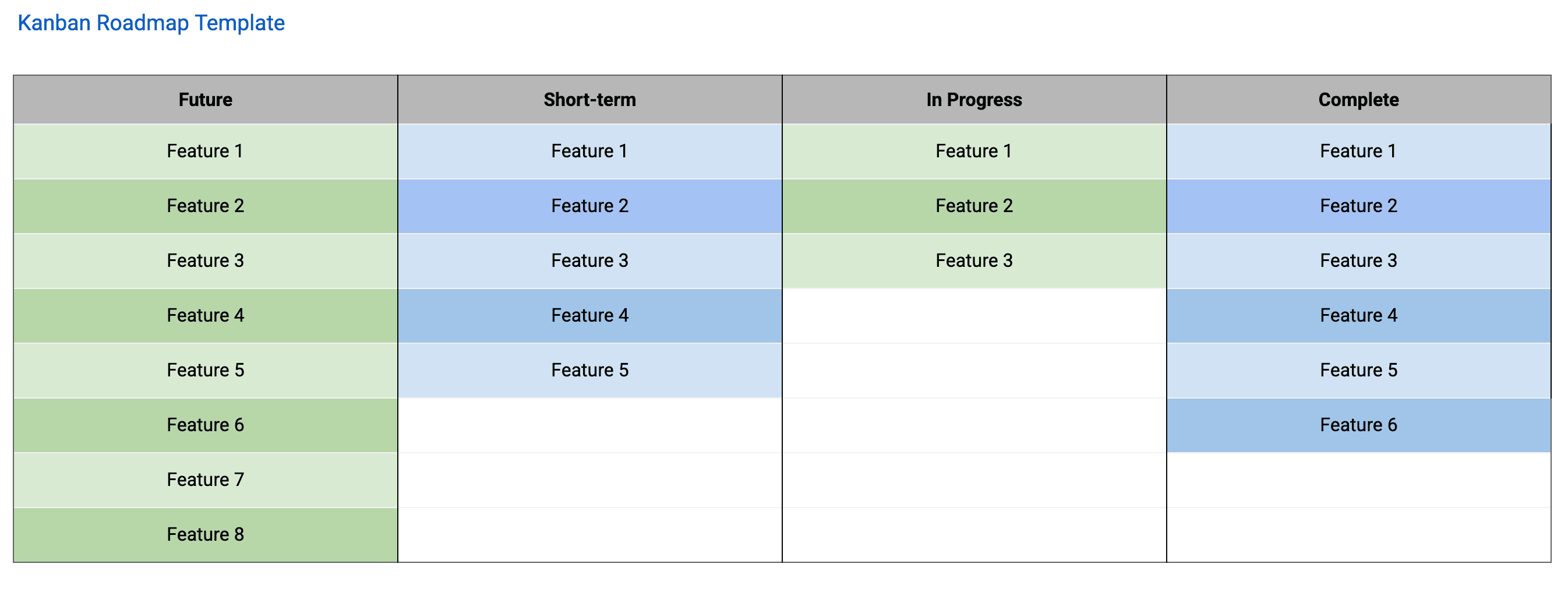
This free Google Sheets kanban roadmap template gives you a visual board to track product work across stages. From backlog through delivery. Inside a spreadsheet everyone already has access to. It combines the flow-based thinking of kanban with the accessibility and collaboration of Google Sheets, so your team can manage work without extra tool subscriptions.
What This Template Includes
- Customizable stage columns. Pre-configured columns (Backlog, To Do, In Progress, In Review, Done) that can be renamed and extended to match your team’s actual workflow. Most teams need 4-6 stages. Adjust freely in Sheets without being locked into a tool’s defaults.
- WIP limits with conditional formatting. Configurable maximum item counts for each stage, enforced by built-in count formulas. When a count exceeds the WIP limit, conditional formatting highlights the overloaded stage in red, surfacing bottlenecks before they stall the pipeline.
- Card detail fields. Each row supports a title, description, priority tier, assignee, estimated effort, due date, category tags (Feature, Bug, Tech Debt, Experiment), and linked dependencies. All filterable and sortable in Sheets.
- Priority lanes. Color-coded priority levels (Critical, High, Medium, Low) so urgent items are instantly visible without scanning every row.
- Cycle time and throughput tracking. Date-added and date-completed columns with built-in formulas to calculate how long items spend in each stage and how many items the team completes per week, providing the data foundation for continuous improvement.
- Blocker and flag system. Visual indicators for blocked items, flagged items needing attention, and expedited items that bypass normal WIP limits.
Why Use Google Sheets for Your Kanban Roadmap
Kanban boards traditionally live in tools like Trello or Jira, but Google Sheets offers unique advantages for roadmap-level kanban. First, everyone already has a Google account. There is no tool adoption barrier. Second, Sheets lets you combine the visual kanban view with data analysis. You can calculate cycle times, build burndown charts, and create pivot tables from the same data without exporting to another tool.
Google Sheets also excels at custom workflows. Dedicated kanban tools force you into their stage definitions, but a spreadsheet lets you add, rename, or remove columns freely. If your team uses a non-standard flow (like separate “Design Review” and “Eng Review” stages), you can configure it in seconds.
The collaboration model is another win. Stakeholders who would never log into Jira will happily glance at a shared spreadsheet. You control who can edit versus view, and the comment feature enables async discussions tied to specific items.
Template Structure
Backlog Column
The leftmost column holds all work that has been accepted into the team’s scope but not yet prioritized for active development. The backlog should be regularly groomed. At least once per week. To remove stale items, re-prioritize based on new information, and ensure that descriptions and acceptance criteria are complete enough for development. A healthy backlog contains 2-4 weeks of work so the team always has a clear pipeline without maintaining an overwhelming list. In Google Sheets, use filters to sort the backlog by priority or category without rearranging the underlying data.
Ready / To Do Column
Items move from Backlog to Ready when they are fully specified, dependencies are resolved, and they are next in line for development. The Ready column functions as a buffer between planning and execution. Its WIP limit should be set to approximately one sprint’s worth of work (if your team uses sprints) or 5-8 items (if your team is purely flow-based). When the Ready column is empty, it signals a planning gap. When it is overflowing, it signals that planning is outpacing execution.
In Progress Column
The active development column contains items that an engineer is currently working on. This is where WIP limits matter most. A common starting point is to set the WIP limit to the number of engineers on the team minus one. For example, a team of five engineers gets a WIP limit of four. This forces at least one engineer to collaborate on existing work (code review, pair programming) rather than starting new work, which reduces context switching and accelerates flow. The template’s conditional formatting turns the column header red when the count exceeds your limit.
In Review Column
Items move here when development is complete and the work is undergoing code review, design review, or stakeholder review. The In Review column is where bottlenecks most commonly hide. If items consistently pile up here, it indicates that the team has a review capacity problem. Too much work is being produced relative to the team’s ability to review it. The solution is usually to allocate dedicated review time rather than treating it as an afterthought.
Testing Column
Dedicated to QA testing, integration testing, and user acceptance testing. Items in this column have passed code review and are being validated against acceptance criteria. The WIP limit for Testing should be set based on the QA team’s throughput. If your team does not have dedicated QA, this column may be merged with In Review, but having it as a separate stage provides visibility into testing as a distinct bottleneck. In Sheets, you can add or remove this column in seconds. No tool configuration required.
Done Column
Items that have been completed, tested, approved, and either shipped to production or included in the next release. The Done column serves as a record of completed work and the source data for throughput calculations. Use the date-completed column to calculate cycle time with a simple formula. Periodically archiving old Done items to a separate sheet tab keeps the board clean while preserving the historical data for metrics.
How to Use This Template
1. Make a copy and customize stages
What to do: Open the template and click File, then Make a copy. Review the default stage columns and adjust them to match your team’s actual workflow. Examine your real process from idea to deployed feature. Identify every distinct stage where work pauses, transitions ownership, or requires a different type of activity. If your team has a “Waiting for Design” stage between Ready and In Progress, add that column.
Why it matters: A kanban board that does not match the real workflow creates confusion and distrust. Engineers will not update a board that does not reflect how they actually work. The board must be a mirror of reality, not an idealized process document.
2. Import your current work items
What to do: Add every active work item as a row. Include the item name, a brief description, the assigned owner, priority level, and category. If you are migrating from Trello, export your board as CSV and paste it in. Each item should have a clear title, a description with acceptance criteria, an estimated effort, and an assigned priority tier.
Why it matters: A well-populated board means that when an engineer finishes one item, they can immediately pull the next highest-priority item without waiting for a product manager to make a decision. This minimizes idle time and keeps the flow moving continuously.
3. Set WIP limits based on team capacity
What to do: For each column, set a WIP limit based on your team’s capacity for that stage. Add these limits to the header row. The template includes formulas that count items per stage. When a count exceeds the WIP limit, conditional formatting highlights the overloaded stage in red. Start conservatively. It is better to set limits too low and raise them than too high and never enforce them. A common starting formula: In Progress WIP = number of engineers minus 1; In Review WIP = half the In Progress WIP; Testing WIP = number of QA engineers times 2.
Why it matters: WIP limits are the single most powerful mechanism in kanban. Without them, a kanban board is just a task tracker. WIP limits force the team to finish work before starting new work, which reduces cycle time, improves quality (fewer context switches), and makes bottlenecks visible. Teams that skip WIP limits consistently report longer delivery times and more work-in-progress than they can manage.
4. Move items through stages and track dates
What to do: As work progresses, update the status column for each item. The conditional formatting changes the row color to reflect its current stage. Update the date columns to track when items enter and leave each stage.
Why it matters: Date tracking in Google Sheets gives you built-in cycle time measurement without a separate analytics tool. The difference between date-added and date-completed is your cycle time, and the AVERAGE function on that column tracks your team’s trend over time.
5. Establish a daily flow review and track metrics
What to do: Hold a daily 10-minute stand-up focused on the board, not on individual status reports. Walk the board from right to left (from Done back to Backlog) and ask three questions: (1) Is anything blocked? (2) Is any column at or over its WIP limit? (3) Are there items that have been in the same column for more than two days? Use the built-in formulas to track throughput (items completed per week) and cycle time (days from start to done). Review these metrics biweekly or monthly.
Why it matters: The right-to-left review prioritizes finishing work over starting work, which is the core kanban principle. Kanban without metrics is just a visual task list. Cycle time is the most important metric because it directly measures how long customers wait for value after work begins. Teams that track and optimize cycle time consistently deliver faster without working harder.
When to Use This Template
A kanban roadmap is the right choice for teams that operate on a continuous delivery model rather than fixed sprints or release trains. For broader context on roadmap planning approaches and how kanban fits alongside other formats, see the guide to building a product roadmap. If your team deploys to production multiple times per week and does not batch work into scheduled releases, kanban aligns your planning process with your delivery process. Forcing a sprint framework on a continuous delivery team creates artificial boundaries that slow flow.
This Google Sheets template is particularly useful for small teams (2-8 people) who need a lightweight workflow tool without the overhead of enterprise project management software. Google Sheets lowers the adoption barrier further. No tool signups, no licenses, no training. You can validate whether kanban works for your workflow before committing to a paid tool.
It is especially effective for platform and infrastructure teams that handle a mix of planned feature work, support requests, and unplanned incidents. The kanban format naturally accommodates variable work types and unpredictable demand because it manages flow rather than committing to a fixed scope per time period. In Sheets, you can filter by category to see just bugs, just features, or just tech debt at any moment.
It is also an excellent starting point for teams transitioning from no formal process to an agile workflow. Kanban has a lower adoption barrier than Scrum because it does not require sprints, sprint planning ceremonies, or story point estimation. Teams can adopt the board and WIP limits immediately and layer on additional practices as they mature. Starting in Google Sheets means the team can experiment with kanban at zero cost and zero tooling overhead.
Featured in
This template is featured in Agile and Sprint Roadmap Templates, a curated collection of roadmap templates for this use case.
Key Takeaways
- Google Sheets provides a free, flexible platform for kanban roadmaps that adapts to any team’s workflow without forcing a rigid structure.
- WIP limits are the defining feature of kanban. The template makes overloaded stages visible with conditional formatting, turning a task list into a flow management system.
- Mapping your board columns to your actual workflow (not a generic template) is essential for team adoption and trust in the system.
- Tracking cycle time and throughput in the same spreadsheet gives you built-in performance metrics without a separate analytics tool.
- The low adoption barrier of Google Sheets makes it ideal for teams experimenting with kanban before committing to dedicated software. Zero cost, zero tooling overhead.
- Right-to-left daily reviews prioritize finishing work over starting work, which is the core principle that accelerates delivery.