Quick Answer (TL;DR)
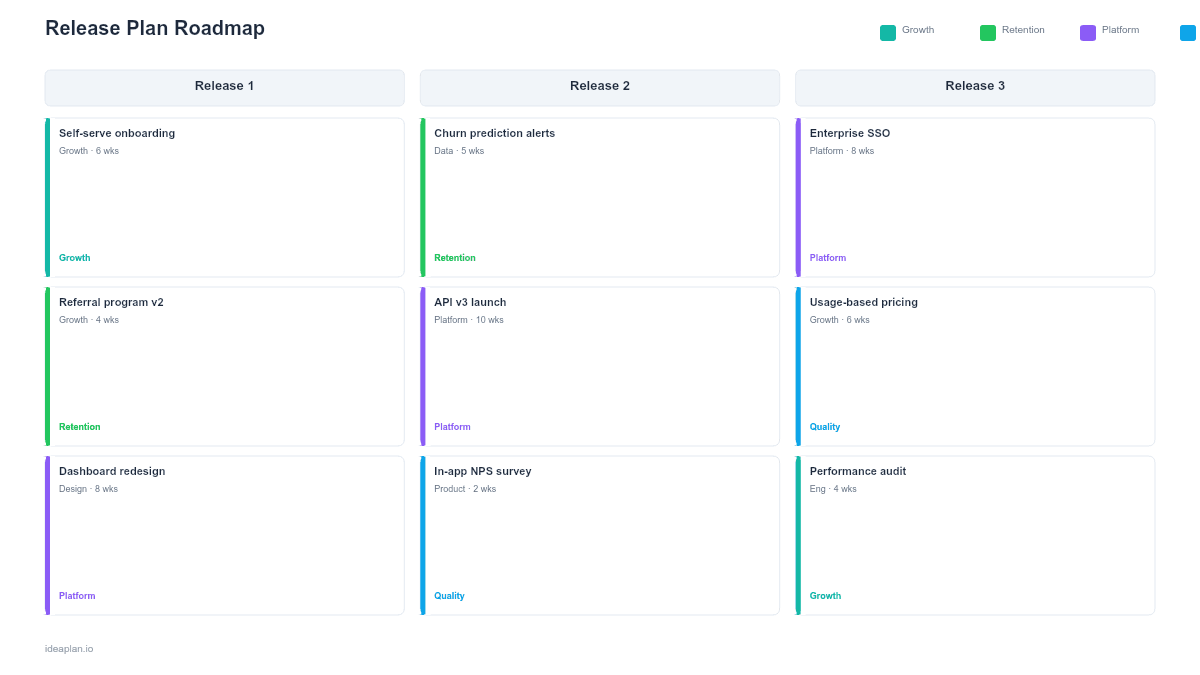
This free PowerPoint release plan template organizes features by version milestone (v2.4, v2.5, v3.0) with status badges (Planned, In Dev, QA, Ready) and target dates. Three release columns give engineering, product, and QA a shared view of what is shipping when. Download the .pptx, replace the version numbers and features, and use it in your next release planning meeting.
What This Template Includes
- Cover slide. Title slide with a clean, teal accent design.
- Instructions slide. Six steps for building and maintaining the release plan.
- Blank template slide. Three release columns with target dates, status legend (Planned, In Dev, QA, Ready), and dashed placeholder areas for features.
- Filled example slide. A complete release plan for three versions with 11 feature cards showing status badges and version scoping.
Why PowerPoint for Release Plans
Release plans need to be shared across product, engineering, QA, design, and customer-facing teams. PowerPoint is the universal format that works in every context: sprint reviews, release readiness meetings, customer success updates, and executive briefings.
Unlike a Jira board or Linear roadmap, a PowerPoint release plan abstracts away the implementation details and shows what matters to stakeholders: what is shipping, when, and what is the status. It bridges the gap between detailed project management and high-level communication.
The three-column layout makes scope decisions visible. When a feature moves from v2.5 to v3.0, the slide shows it. When scope creeps, the growing card count in a column makes it obvious. This visibility is the release plan's primary value.
Template Structure
Release Columns
Three columns, one per release version. Each column has a header showing the version number and target date. The three-release view balances near-term detail with forward visibility. Typically covering the next release (in progress), the following release (planned), and the release after that (scoped but flexible).
Status Legend
Four color-coded statuses track each feature's progress:
- Planned (gray). Scoped and assigned to this release but work has not started
- In Dev (blue). Actively being built by the engineering team
- QA (amber). In testing, awaiting sign-off
- Ready (green). Tested and approved for release
Feature Cards
Each card shows the feature name and a colored status badge. Keep feature names short and user-facing: "Team workspaces" not "Implement multi-tenant workspace schema with role-based access." The card is a communication tool; link to detailed specs in your project management system.
How to Use This Template
1. Define your releases
Set the version numbers and target dates. Use semantic versioning or your team's convention. The target date should be a realistic estimate, not a stretch goal. Overcommitting erodes trust with stakeholders who rely on these dates.
2. Scope features to releases
Assign each feature to a release based on priority, dependencies, and capacity. The discipline of scoping forces hard choices: if v2.4 has too many features for its timeline, something must move to v2.5. This conversation is better to have now than the week before release.
3. Set initial status
New features start as "Planned." As sprints progress, update to "In Dev," then "QA," then "Ready." The status colors make the overall health of each release visible at a glance. A column full of green means you are on track, a column full of gray means work has not started.
4. Review weekly with the team
Walk through each release column in your weekly sync. Focus on status changes, blocked items, and anything that needs to move between releases. The slide should reflect reality, not the original plan.
5. Communicate scope changes
When features move between releases, update the slide and communicate the change. Stakeholders. Especially customer success and sales. Need to know if a promised feature has shifted. The release plan is the source of truth for "what ships when."
6. Archive and retrospect
After each release ships, save the final version of the slide. Compare planned vs. actual scope in your retrospective. Patterns in scope movement reveal systemic issues: consistently moving features to later releases may indicate estimation problems or scope creep.
When to Use This Template
Release plans are the right format when:
- Your product ships in discrete versions with named releases and specific dates
- Engineering and QA need a shared view of what is in scope for each release
- Customer success and sales need to communicate upcoming features to customers
- Release readiness meetings require a single artifact showing scope and status
- Sprint reviews need context for how current work fits into the release plan
If your team ships continuously without version milestones, the Now-Next-Later PowerPoint template or a kanban approach may be more appropriate. If you need to show cross-team coordination, combine this with the Swimlane PowerPoint template.
Featured in
This template is featured in Agile and Sprint Roadmap Templates, a curated collection of roadmap templates for this use case.
Key Takeaways
- Three-column layout shows scope across current, next, and future releases.
- Color-coded status badges (Planned, In Dev, QA, Ready) make release health visible at a glance.
- PowerPoint format works across all audiences: engineering, QA, sales, and executives.
- Update weekly to reflect reality, not the original plan.
- Features that consistently move between releases signal estimation or prioritization issues.
- Compatible with Google Slides, Keynote, and LibreOffice Impress. Upload the
.pptxto Google Drive to edit collaboratively in your browser.