Quick Answer (TL;DR)
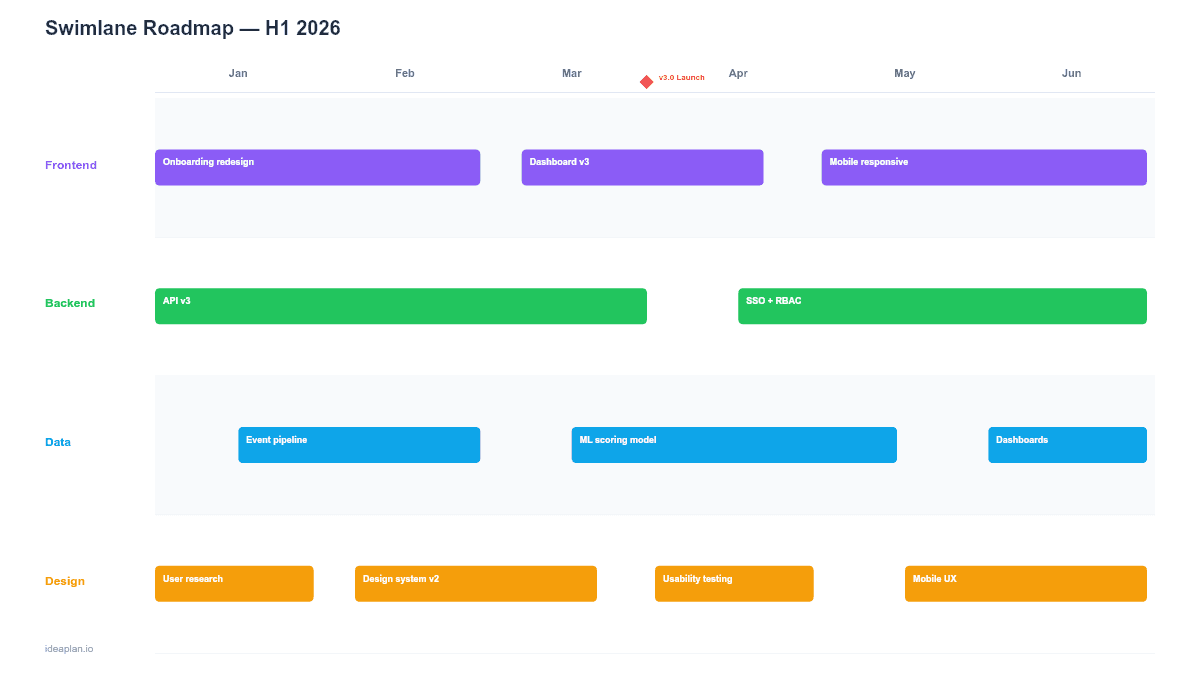
This free, no-signup PowerPoint swimlane roadmap template shows work across multiple teams on a shared 6-month timeline. Each team gets a horizontal lane with color-coded bars showing initiative duration and overlap. It is the standard format for coordinating cross-functional work where timing and dependencies matter.
What This Template Includes
- Cover slide. Title and subtitle establishing the roadmap scope and timeframe.
- Instructions slide. Six practical tips for building and maintaining swimlane roadmaps.
- Blank template slide. Four lanes (Frontend, Backend, Data, Design) across a 6-month grid with alternating row backgrounds for readability.
- Filled example slide. Complete H1 2026 roadmap showing 13 initiatives across four teams with duration bars, a milestone diamond for a major launch, and month labels.
Why PowerPoint for Swimlane Roadmaps
Swimlane roadmaps are inherently visual. They communicate through position, color, and overlap. Not through lists or tables. PowerPoint gives you precise control over bar placement, sizing, and color that browser-based tools often constrain.
The .pptx format also lets you drop the swimlane slide into an existing program review deck, engineering all-hands, or quarterly planning presentation. No screenshots, no exports, no broken formatting.
For product managers coordinating multiple teams, the swimlane view answers the question executives ask most: "What is each team working on and where do the handoffs happen?" A single slide shows the full picture.
Template Structure
Horizontal Lanes
Each lane represents a team, workstream, or product area. The default template includes four lanes (Frontend, Backend, Data, Design), but you can add or remove lanes to match your org. Keep the total to 4-5 lanes. More than that and the slide becomes too compressed to read at presentation scale.
Timeline Grid
The 6-month timeline runs left to right with vertical gridlines separating months. The alternating row backgrounds make it easy to track which lane you are reading. Adjust the timeline to match your planning horizon. Some teams prefer sprints, others prefer quarters.
Initiative Bars
Each initiative is a colored bar spanning its expected duration. The color matches the team lane for quick identification. Overlapping bars between lanes reveal parallel work and potential integration points. Gaps between bars reveal idle periods or planned capacity for unplanned work.
Milestone Markers
Red diamond markers highlight key dates: product launches, demos, regulatory deadlines, or integration milestones. Place them above the timeline header so they are visible across all lanes. The example slide shows a "v3.0 Launch" milestone at the end of March.
How to Use This Template
1. Define your lanes
Replace the default team names with your actual teams or workstreams. If your roadmap is for a single team, use workstreams (e.g., "Core Product," "Integrations," "Infrastructure," "Research") instead of team names.
2. Set the timeline
Update the month labels to match your planning period. For a rolling roadmap, use relative labels (Month 1, Month 2) and update monthly. For a fixed plan, use calendar months (Jan, Feb, Mar).
3. Place initiative bars
Drag and resize colored bars to show when each initiative starts and ends. Keep bar labels short. 2-3 words maximum. The bar is a visual marker, not a description. Add detail in a linked document.
4. Mark milestones
Add diamond markers for key dates that affect multiple teams. Milestones should represent external commitments (launches, deadlines) rather than internal checkpoints. Limit to 2-3 per slide to avoid clutter.
5. Identify dependencies
Where work in one lane depends on output from another, check that the upstream bar finishes before the downstream bar starts. If bars overlap incorrectly, you have a dependency risk that needs resolution before the plan is finalized.
6. Present and update
Walk through the slide lane by lane in cross-functional meetings. Highlight where teams are working in parallel (coordination needed) and where bars end before new ones begin (capacity available). Update bar positions weekly as work progresses.
When to Use This Template
Swimlane roadmaps are the right choice when:
- Multiple teams are contributing to a shared product or program and need a coordinated view
- Dependencies between teams need to be visible so handoff timing is clear
- Executives want to see the full engineering portfolio on one slide
- Quarterly or half-year planning requires showing how work sequences across teams
- Program managers need a single artifact to track cross-team progress
If you are planning for a single team without cross-team dependencies, a simpler format like the Now-Next-Later PowerPoint template or Quarterly PowerPoint template will be easier to maintain.
For release-based planning where the focus is on version milestones rather than team coordination, use the Release Plan PowerPoint template.
Featured in
This template is featured in Multi-Product and Portfolio Roadmap Templates, a curated collection of roadmap templates for this use case.
Key Takeaways
- Swimlane roadmaps show what each team is working on and when, on a single slide.
- Color-coded bars make parallel work and handoff timing visible at a glance.
- Limit to 4-5 lanes for readability at presentation scale.
- Milestone markers highlight external commitments that affect multiple teams.
- PowerPoint format lets you embed the roadmap in any existing deck without conversion.
- Compatible with Google Slides, Keynote, and LibreOffice Impress. Upload the
.pptxto Google Drive to edit collaboratively in your browser.