Quick Answer (TL;DR)
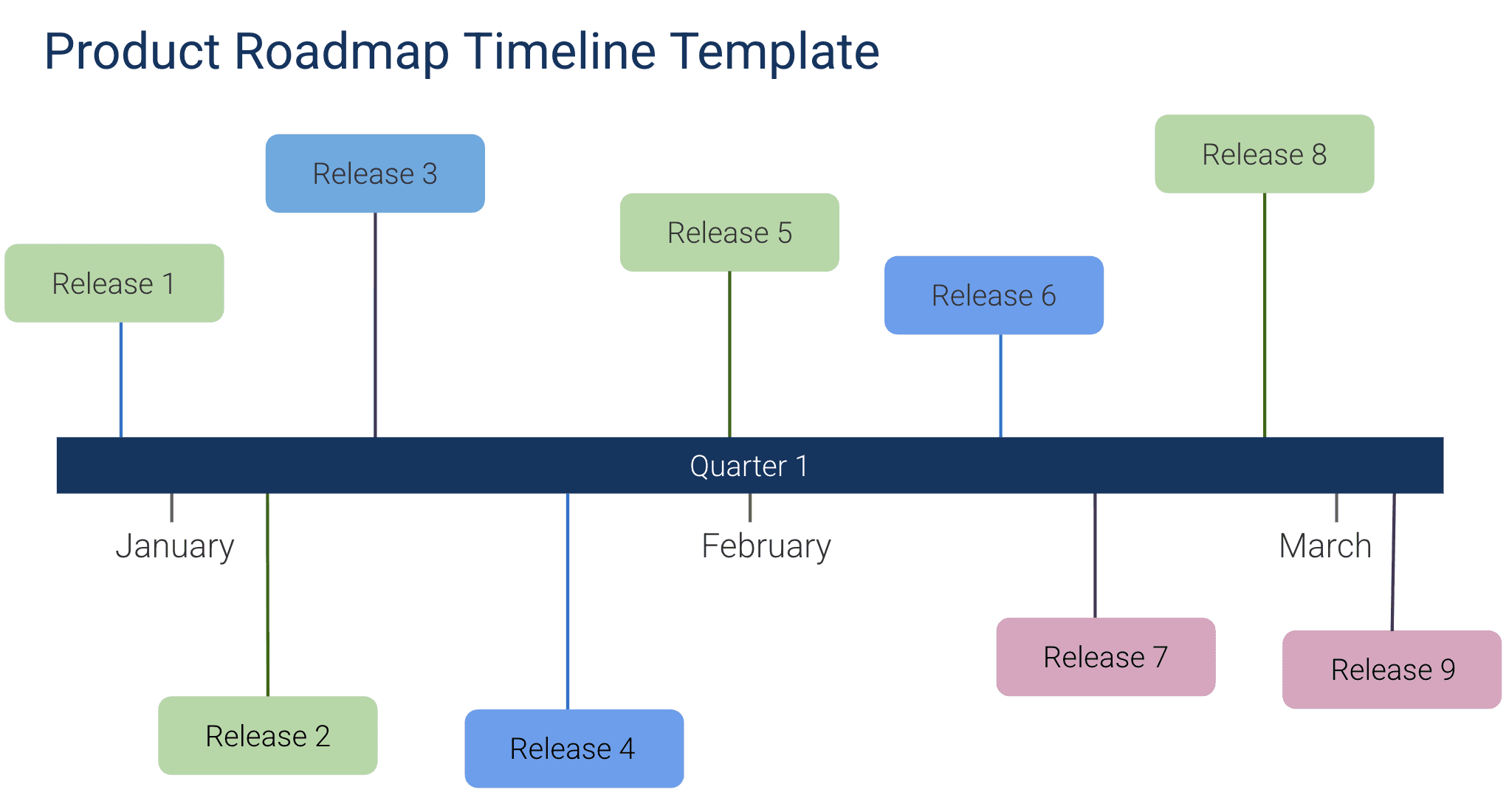
This free Google Slides timeline roadmap template lays out your product plan on a chronological axis with milestones, phases, and team assignments. It is the classic roadmap format, rooted in Gantt chart visualization. The one executives expect to see and the one that answers "when will X be done?" most directly. For more on the features timeline roadmap format and how it fits into your broader planning process, see our guide to building a product roadmap.
What This Template Includes
- Chronological timeline. A horizontal time axis spanning months or quarters with project phases and milestones mapped along it.
- Phase bars. Color-coded horizontal bars representing distinct product phases (Discovery, Design, Development, Launch) with start and end dates.
- Milestone diamonds. Key dates marked as diamond markers on the timeline. Launches, demos, regulatory deadlines, or strategic checkpoints.
- Team swim lanes. Optional horizontal lanes that separate work by team, product area, or workstream so cross-team coordination is visible.
- Dependency arrows. Visual connectors between phases or milestones that depend on each other.
- Status overlay. Color shading to show completed (green), in-progress (blue), and upcoming (gray) phases at a glance.
Why Use Google Slides for a Timeline Roadmap
Timeline roadmaps are the most intuitive format for communicating product plans. The left-to-right chronological flow mirrors how people naturally think about time, requiring zero explanation. Google Slides turns this into a presentation-ready visual that works in any meeting.
The design tools in Google Slides. Shapes, connectors, color fills, and alignment guides. Are purpose-built for creating clean timeline visuals. Unlike spreadsheets that struggle with visual layouts, Slides gives you pixel-level control over how your timeline looks.
Timeline decks also serve as historical records. At the start of each quarter, duplicate the deck. At the end, compare planned versus actual. Over multiple quarters, this collection becomes powerful data for improving estimation accuracy and building organizational trust in the roadmap process.
How to Use This Template
1. Set your time horizon
Make a copy and decide how far the timeline extends. For tactical planning, use months over a 3-6 month horizon. For strategic planning, use quarters over a 12-18 month horizon. Label the time axis clearly.
2. Add phases and initiatives
Place horizontal bars for each major initiative or phase on the timeline. Set the bar start and end points to reflect planned dates. Use consistent colors. One color per team, product area, or initiative type.
3. Mark milestones
Add diamond markers for key dates: product launches, customer demos, board presentations, regulatory deadlines, or any event that creates a hard constraint on the timeline. Label each milestone clearly.
4. Draw dependencies
If Phase B cannot start until Phase A completes, add a connector arrow between them. Dependencies make scheduling constraints visual and help the audience understand why certain things are sequenced the way they are.
5. Add the status overlay
Color-code completed work (green), in-progress work (blue), and future work (gray). This three-color system shows the audience where you are on the timeline without requiring them to check dates.
When to Use This Template
Use a timeline roadmap when your audience needs to understand the chronological sequence of product work. This is the default format for executive presentations, board updates, and any meeting where "when" is the primary question.
This template is ideal for long-term planning (annual or multi-year) where showing the sequence and duration of major phases is more important than feature-level detail. It also works well for programs with hard deadlines. Regulatory launches, contractual commitments, or conference demos.
If your stakeholders are non-technical, the timeline format requires the least explanation. It is the most universally understood roadmap format across industries and functions.
Featured in
This template is featured in Quarterly and Timeline Roadmap Templates, a curated collection of roadmap templates for this use case.
Key Takeaways
- Timeline roadmaps are the most universally understood format. The left-to-right chronological flow requires zero explanation.
- Phase bars and milestone markers communicate both duration and key dates in a single visual.
- Dependency arrows explain why work is sequenced the way it is, preventing stakeholder questions about ordering.
- The three-color status overlay (completed, in-progress, future) shows progress at a glance without checking dates.
- Quarterly snapshots of the timeline deck build a powerful dataset for improving estimation and building roadmap credibility.