Quick Answer (TL;DR)
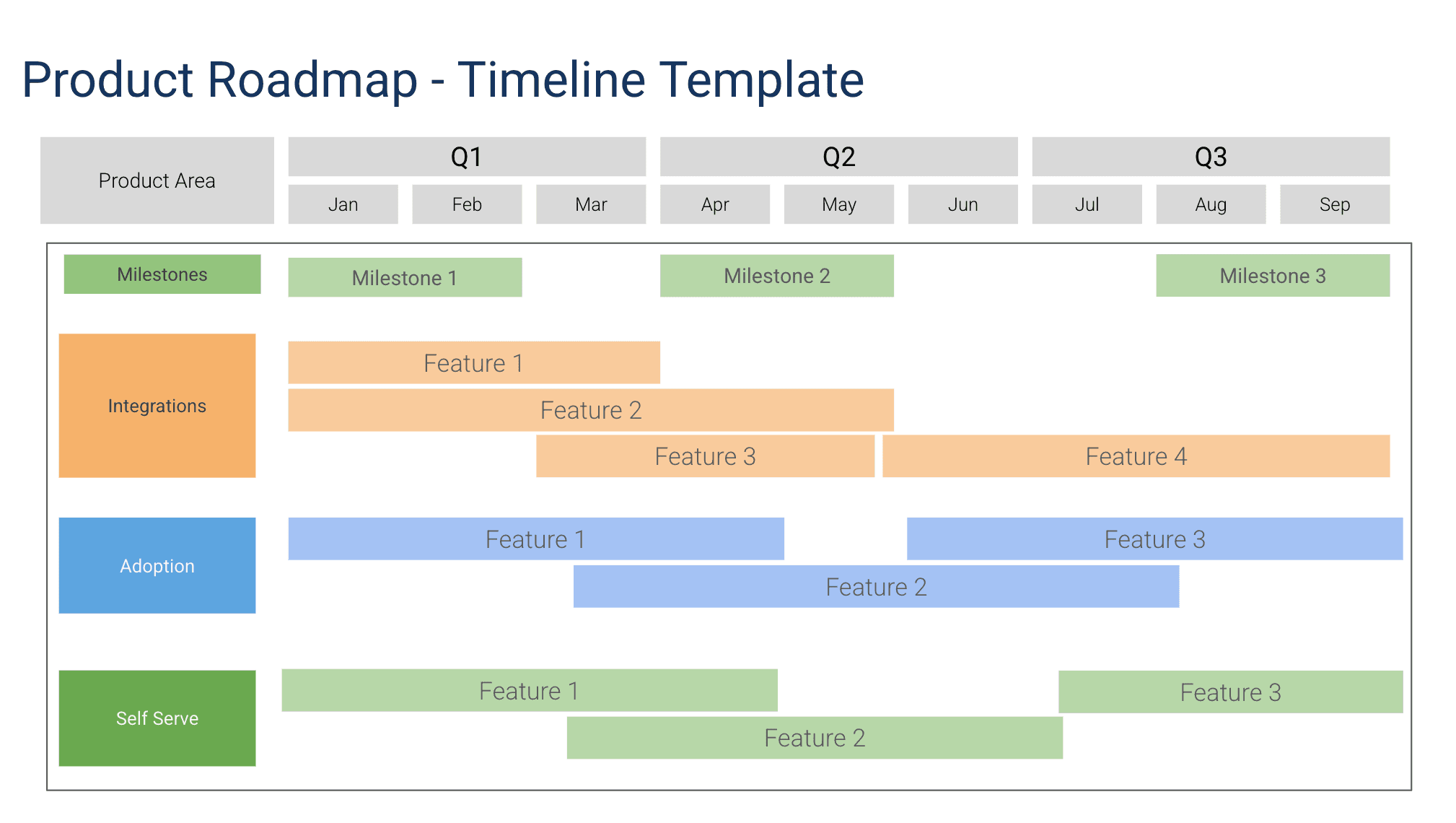
This free Google Slides product timeline roadmap template maps features across product areas and quarters in a structured grid. Each row represents a product area (Integrations, Adoption, Self Serve, etc.), following a swimlane visualization approach and features are laid out as bars spanning their planned timeline. Giving leadership a single view of what every team is building and when. For more on the timeline roadmap format and how it compares to other layouts, see our guide to building a product roadmap.
What This Template Includes
- Product area swimlanes. Horizontal rows for each product area or team, clearly labeled and color-coded for instant recognition. Each row represents a discrete piece of work or team.
- Quarterly timeline grid. Columns broken into Q1, Q2, Q3 (and beyond) with monthly subdivisions for precise feature placement, toggling between weekly and monthly views.
- Feature bars. Horizontal bars representing each feature's planned duration, positioned within the appropriate product area row and time range, color-coded by product area or priority.
- Milestone row. A dedicated top row for cross-product milestones that anchor all teams to shared deadlines, including beta launches, board reviews, partner integration deadlines, and regulatory submissions.
- Dependency arrows. Connecting lines between feature rows that indicate where one item cannot start or finish until another is complete, surfacing sequencing risks before they cause delays.
- Status indicators. On-track, at-risk, and delayed color coding on each feature bar so scanning the roadmap visually highlights where attention is needed.
Why Use Google Slides for a Product Timeline Roadmap
Product timeline roadmaps that span multiple product areas need a visual format that makes the grid structure clear. Google Slides gives you precise control over the layout. You can align feature bars to exact time positions, color-code by theme, and maintain consistent spacing that makes the roadmap scannable.
This template style is particularly effective for organizations with multiple product areas that share a planning cadence. The swimlane-by-product-area format shows each team's plan in the context of the broader product portfolio, revealing coordination opportunities and resource conflicts.
Google Slides also makes this format easy to update during planning meetings. Drag feature bars to adjust timing, duplicate bars to explore "what if" scenarios, and save a version before and after each planning session to track how the plan evolves.
Template Structure
Timeline Horizon
The top-level axis of the roadmap defines your planning horizon. Most product teams find that a rolling three-to-six-month window strikes the right balance between specificity and flexibility. Shorter horizons work well for fast-shipping SaaS products; longer horizons suit hardware or regulated industries where commitments are made far in advance. The template lets you toggle between weekly and monthly columns so you can zoom in on what is imminent and zoom out for strategic conversations. In Google Slides, the default shows Q1-Q3 with monthly breakdowns that you can extend or compress to fit your needs.
Feature Rows
Each row represents a discrete piece of work, whether that is a single feature, an epic, or a larger initiative. Rows include fields for title, owner, target start and end dates, and current status. By keeping one row per deliverable, you avoid the common trap of lumping unrelated work together, which hides risk. You can color-code rows by product area or priority to make patterns visible without reading every label. Keep it to 2-4 features per area per quarter for a readable, presentation-appropriate density.
Milestones and Gates
Milestones sit on top of the timeline as diamond markers. They represent events that are not work items themselves but that constrain or trigger work: a beta launch, a board review, a partner integration deadline, or a regulatory submission. Placing milestones on the same canvas as features forces the team to reason about whether the current plan actually reaches those milestones on time. Gates are a special kind of milestone where a decision must be made before subsequent work can continue, such as a go/no-go for general availability.
Dependency Mapping
Dependencies are the silent killers of product schedules. This section of the template uses connecting lines between feature rows to indicate where one item cannot start or finish until another is complete. Making dependencies explicit is the single most valuable thing a timeline roadmap does. When a dependency exists only in someone's head, it surfaces as a surprise delay weeks later. When it lives on the roadmap, it can be negotiated, re-sequenced, or staffed around proactively. In Google Slides, draw connector arrows between features that depend on each other across rows to make these constraints presentation-visible.
Status and Health Indicators
Each feature row carries a status field: Not Started, In Progress, Complete, At Risk, or Blocked. The template uses color coding so that scanning the roadmap visually highlights where attention is needed. A healthy roadmap is mostly green. A roadmap with scattered red and yellow tells leadership that the plan needs intervention, not just monitoring.
How to Use This Template
1. Define your product areas
Make a copy and update the row labels to match your product areas, teams, or workstreams. Common examples: Core Product, Growth, Platform, Integrations, Mobile. Use 3-5 rows for a single slide. Create additional slides for more areas.
Why it matters: A clear set of product area rows tells stakeholders what is in-scope for the roadmap. It also forces the team to confront the total volume of work across all areas. If the roadmap looks impossibly crowded, that is a signal to cut scope before starting.
2. Set the timeline scale
Adjust the column headers to match your planning horizon. The default shows Q1-Q3 with monthly breakdowns. Extend to Q4 or compress to a single quarter depending on your needs.
Why it matters: A clear horizon prevents scope creep into vague long-term promises. Milestones create fixed reference points that anchor the roadmap to immovable dates.
3. Place features on the grid
For each product area, add feature bars spanning the months they are planned for. Label each bar with the feature name. Position related features adjacently within the same row so the viewer can see how they build on each other. Include the owner's name and the target delivery window.
Why it matters: Exhaustive listing forces the team to confront the total volume of work. Feature bars with explicit timing make delivery expectations visible to both the team and stakeholders.
4. Add milestones and draw dependencies
Use the milestone row to mark dates that affect all product areas. Launches, customer events, board reviews, or regulatory deadlines. Connect any two features where one blocks the other with dependency arrows. Note the type of dependency (finish-to-start, start-to-start).
Why it matters: Dependency mapping is where most timeline roadmaps earn their value. Without it, you have a list with dates. With it, you have a plan that accounts for sequencing constraints. These shared anchors help teams coordinate their individual timelines.
5. Color-code for strategic themes and review weekly
Apply consistent colors to feature bars based on strategic theme (Growth features in green, Platform in blue, etc.). This lets leadership quickly assess whether investment is balanced across strategic priorities. Set a recurring 30-minute meeting to update statuses and adjust dates based on reality.
Why it matters: Color-coded themes reveal investment balance across the portfolio at a glance. A roadmap that is not updated becomes fiction. Weekly cadence keeps drift small enough to correct without major replanning.
When to Use This Template
A product timeline roadmap is the right tool whenever you need to communicate what will be delivered and when across multiple product areas. That makes it the most common format for stakeholder updates, board presentations, and cross-team coordination meetings. Google Slides makes this communication polished and professional for any audience. If your audience cares about dates and sequencing, use a timeline.
This template is especially valuable during the transition from strategy to execution. Once your team has decided which problems to solve and which features to build, the timeline roadmap converts those decisions into a delivery plan. It bridges the gap between a prioritized backlog, which has no dates, and a sprint plan, which is too granular for anyone outside the team to follow.
Teams that manage multiple concurrent workstreams will also benefit. When three or four product areas are shipping features in parallel, the timeline view reveals conflicts that no single team's sprint board would show. A shared resource bottleneck, overlapping QA windows, or two features targeting the same integration point all become visible when plotted on a common timeline.
This template works especially well for mid-size to large product organizations (3+ product teams) where each team has its own roadmap but leadership needs a consolidated view. It replaces the need to review each team's roadmap separately. It is also effective for annual planning kickoffs where teams present their proposed plans side by side. The grid format makes resource conflicts and coordination opportunities visible at a glance.
Featured in
This template is featured in Quarterly and Timeline Roadmap Templates, a curated collection of roadmap templates for this use case.
Key Takeaways
- A product timeline roadmap converts strategic priorities into a date-driven delivery plan that stakeholders can follow across multiple product areas.
- Dependency mapping is the highest-value element; it surfaces sequencing risks before they cause delays.
- Product area swimlanes give leadership a unified view of what every team is building, replacing the need to review individual roadmaps.
- The quarterly grid format with monthly precision hits the right level of detail for strategic planning conversations.
- Update the roadmap weekly to keep it accurate and trustworthy. Use date ranges for uncertain items rather than false precision.
- Color-coded strategic themes reveal investment balance across the portfolio at a glance, keeping planning conversations grounded in evidence.